Compress an image to 100KB or 200KB
- Choose Use 100 KB or Use 200 KB, then add your JPG, PNG or WebP files.
- Check the output format. Both shortcuts choose JPG; transparent areas become white. Choose WebP if your destination accepts it and you need transparency.
- Select Process images. Check each file’s actual bytes and dimensions, then save one file or the batch ZIP.
Reduce image size in KB without silently changing pixels
Compression first adjusts JPG or WebP quality at the selected dimensions. If the limit cannot be met, the image shows an error. You decide whether to increase the limit, change format, or allow smaller dimensions and retry. PNG is lossless and may not become smaller just by re-encoding.
Check the upload limit’s units. This tool uses 1 KB = 1,024 bytes, so 100 KB means at most 102,400 bytes. If a destination requires strictly less than 100,000 or 200,000 bytes, use 97 KB or 195 KB respectively, and inspect the actual byte count. Files are kept under a ceiling; they are not padded to an exact byte size.
Check image file size in KB, resolution and upload requirements →
Choose pixels and file size separately
Use the free bulk image resizer with a 200 KB limit, or start with 100 KB. Both tasks initially preserve original dimensions and select JPG. If your form allows smaller pixels, explicitly enable smaller dimensions to help fit the limit. Set the pixel dimensions your upload requires, process the batch, and check every result before downloading. If an image cannot fit, use the recovery actions to edit the limit or explicitly allow smaller dimensions; pixels are never reduced silently.
Pixels measure an image’s dimensions. KB measures encoded file size. Two 1200 × 800 images can have very different sizes because detail, noise, format and compression all matter.
| Your requirement | Settings to use | Check before saving |
|---|---|---|
| 1200px wide | Fit; width 1200; height blank | Height follows original proportions |
| 800 × 800 square | Center crop; 800 × 800 | Important details remain in frame |
| Under 100 KB | JPG/WebP; maximum 100 KB | Result ≤ 102,400 bytes |
| Under 200 KB | JPG/WebP; maximum 200 KB | Result ≤ 204,800 bytes |
| Transparent logo | PNG/WebP | Destination accepts the format |
Start with 100 KB → Start with 200 KB →
Why a size limit sometimes fails
Jofun first renders your chosen dimensions, then adjusts JPG or WebP quality within a bounded range. If the result is still too large, that image receives an error. By default, pixel dimensions stay fixed. If you enable Allow smaller dimensions, the tool tries a bounded series of smaller sizes and shows the actual result. Exact crops remain fixed. It never labels an oversized file as successful.
To resolve the conflict, increase the KB limit, reduce the dimensions yourself, or change PNG to JPG/WebP where appropriate. JPG adds a white background to transparent areas. PNG is lossless; changing the quality setting cannot reliably shrink it.
A repeatable example
Use the tool’s three sample images. Set width to 1200, leave height blank, choose JPG and set maximum size to 200 KB. Process and preview the results, then inspect the downloaded files. For a stricter stress case, use an exact 800 × 800 PNG crop and set a 1 KB limit: failure should be reported clearly rather than producing a misleading download.
The samples are original generated illustrations, not representative performance benchmarks. Your photos may compress differently. This tool counts 1 KB as 1,024 bytes; some services use decimal units, so confirm their exact limits.
Verified example: 600px wide and under 100 KB
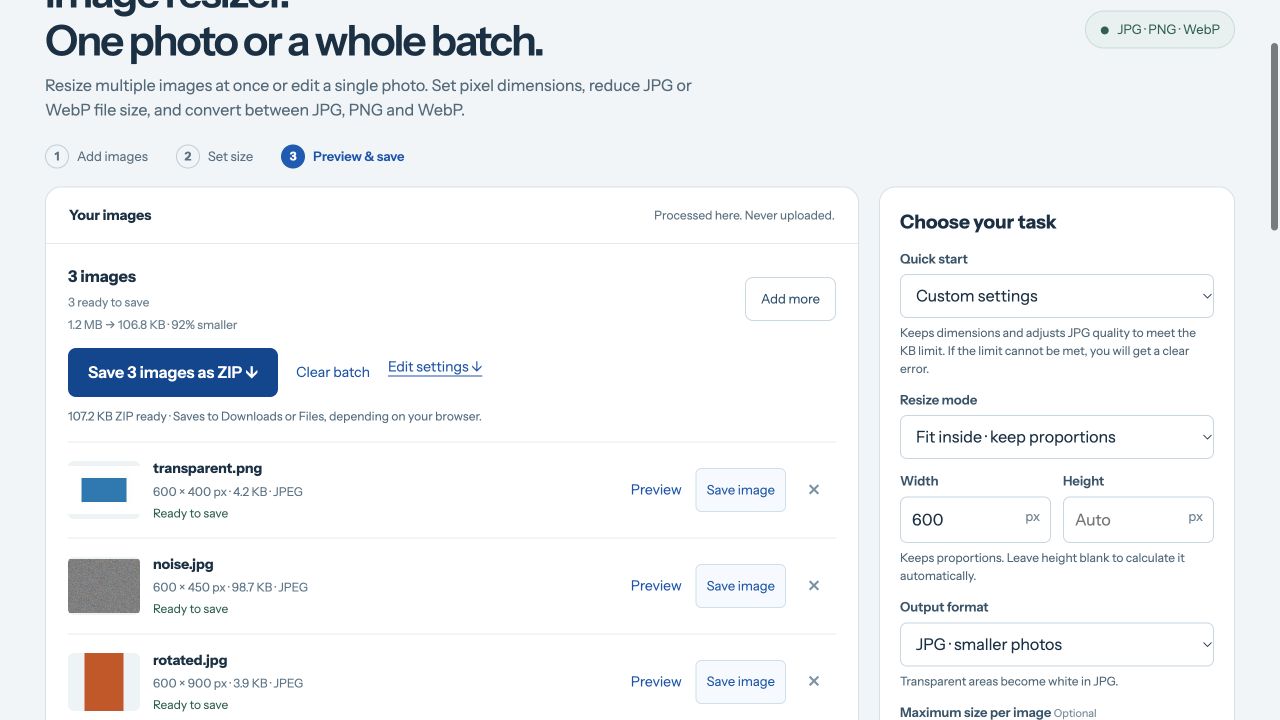
Checked on 15 October 2026 with Jofun v1.3.0 in a desktop Chromium browser. These are synthetic test images, not customer photos or a speed benchmark. Use Fit, width 600, height blank, JPG, quality 85 and maximum 100 KB. Every saved image below is under 102,400 bytes; ZIP headers add a little to the total download size.
| Original | Saved JPG | Bytes |
|---|---|---|
| Noise · 1200 × 900 · 1,274,228 bytes | 600 × 450 | 101,090 |
| Rotated photo · displayed 640 × 960 · 10,304 bytes | 600 × 900 | 4,009 |
| Transparent PNG · 960 × 640 · 3,185 bytes | 600 × 400 · white background | 4,289 |



The transparent artwork becomes larger in bytes after conversion to JPG. A different format does not always make a smaller file. The portrait input uses EXIF orientation; its displayed orientation is preserved.
Download the actual three-image result ZIP, or use the original files above to repeat the task. Browser encoders may produce different byte sizes; verify your own results.
Protect your originals
Re-encoding removes source metadata and may alter color or detail. Use copies for online uploads. Keep the originals for printing, editing or archiving.
Save results on Android or iPhone → · Resize by pixels or percentage →