Bulk resize images on your phone.
Resize several photos in your browser, then save one image or a ZIP. The steps below cover Android Chrome and iPhone Safari, including where the download goes.
Try a 50% batch → Need a 100 KB or 200 KB limit?
Start with the settings your task needs
| Your goal | Settings | Check before saving |
|---|---|---|
| Half the width and height | Percentage of original → 50% | 1600 × 1200 becomes 800 × 600 |
| Keep every photo at most 1200px wide | Pixels → width 1200; height blank | Each photo keeps its proportions |
| Fit an upload limit | 100 KB or 200 KB; JPG | Inspect the actual bytes and dimensions |
Use copies of your originals. Re-encoding can change metadata, color and detail. Start with 5–10 images on an older phone. This release accepts still JPG, PNG and WebP; export HEIC or animated files as still JPG/PNG first.
Android: choose, resize and find the download
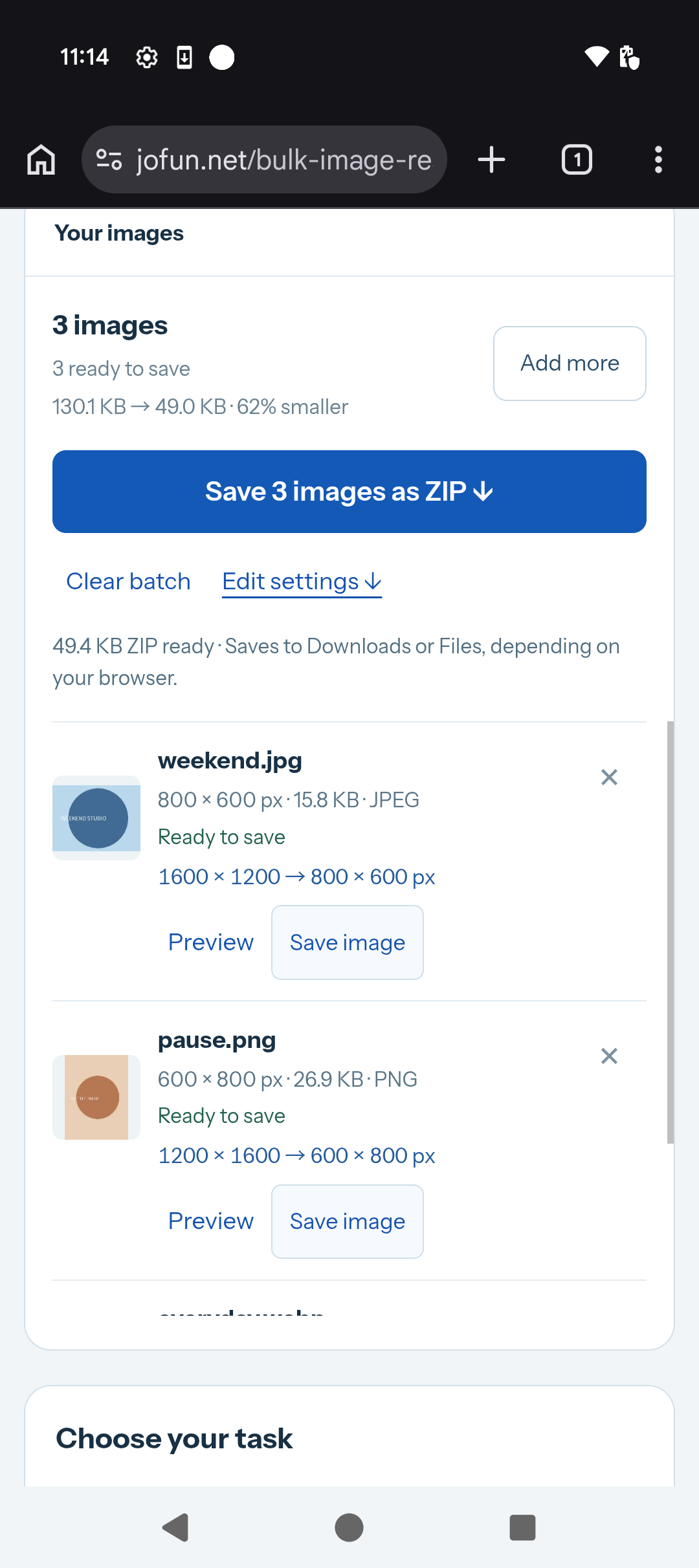
- Add images. Open the tool in Chrome. Tap Choose images and use the Android picker, or tap Try 3 sample images to follow the example.
- Set the size. Choose 50% of original size. Review each image’s planned dimensions before processing. For a KB limit, use the KB tool and keep smaller dimensions off when you need exact pixels.
- Process and preview. Tap Process images. Check each result’s dimensions, format and size. If a file fails, its message explains what to change; successful results remain available.
- Save. Tap Save image for one result, or Save images as ZIP for the batch. In Chrome, open ⋮ → Downloads. You can also check the device’s Files app → Downloads.
- Check the file. Open the saved image. For ZIP, extract it with Files or a ZIP app and open the images inside. Downloaded files do not always appear automatically in Photos.
iPhone: save the ZIP in Files
- Add images. Open the tool in Safari. Tap Choose images and choose your JPG/PNG/WebP files, or try the built-in samples.
- Resize and review. Choose 50%, process the images, then preview their dimensions, format and size. Keep Safari open while processing.
- Download. Tap Save images as ZIP and confirm Download if Safari asks. Open Safari’s page menu → Downloads and select the ZIP. The menu position can vary by iOS version.
- Choose a location. If the ZIP preview is open, tap Share → Save to Files. Choose On My iPhone or iCloud Drive, open the destination folder, then tap Save. In the Chinese device interface shown below, these controls are 共享 → 存储到“文件” → 存储.
- Open the saved result. Find the ZIP in Files and tap it to extract. Open an image in the extracted folder to confirm it saved. To put an image in Photos, open that image and use Share → Save Image if available.
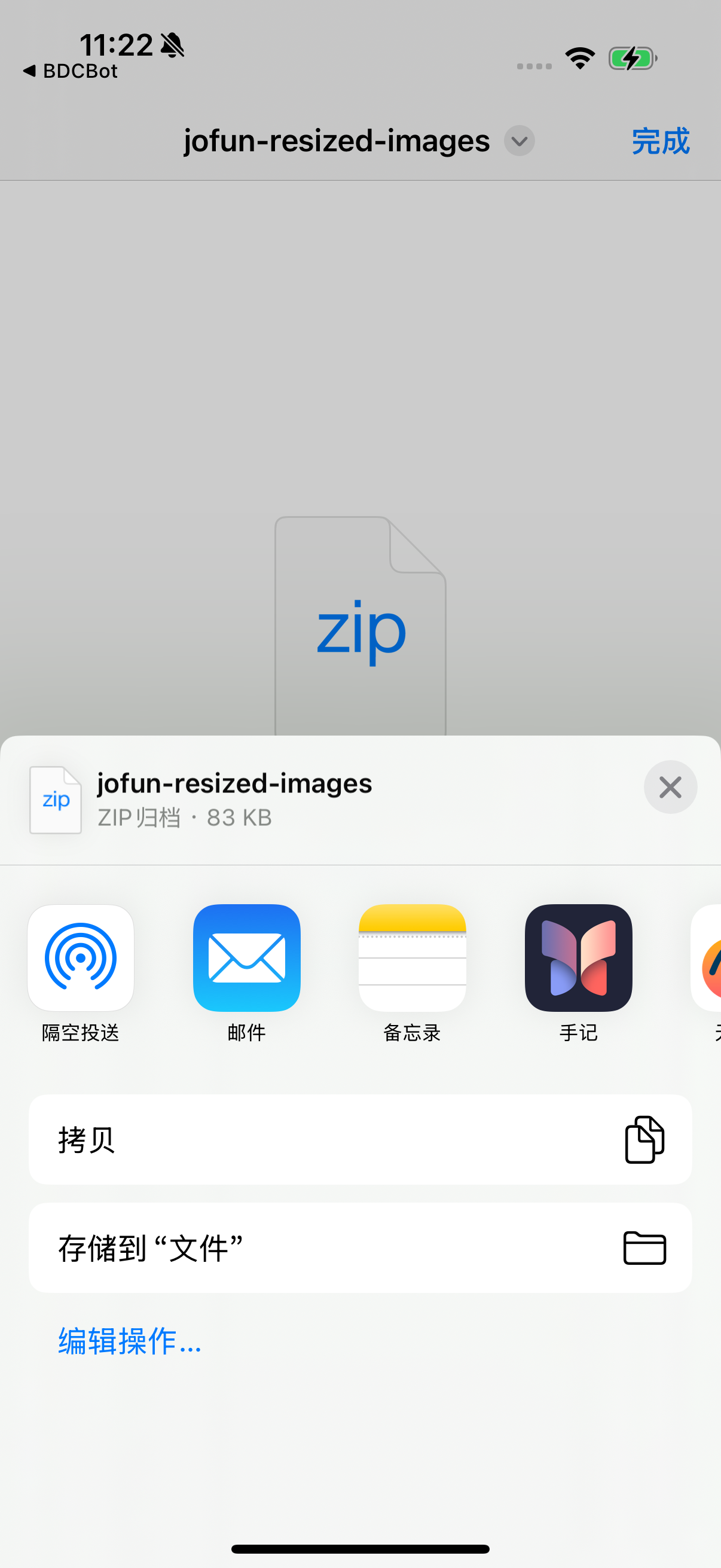
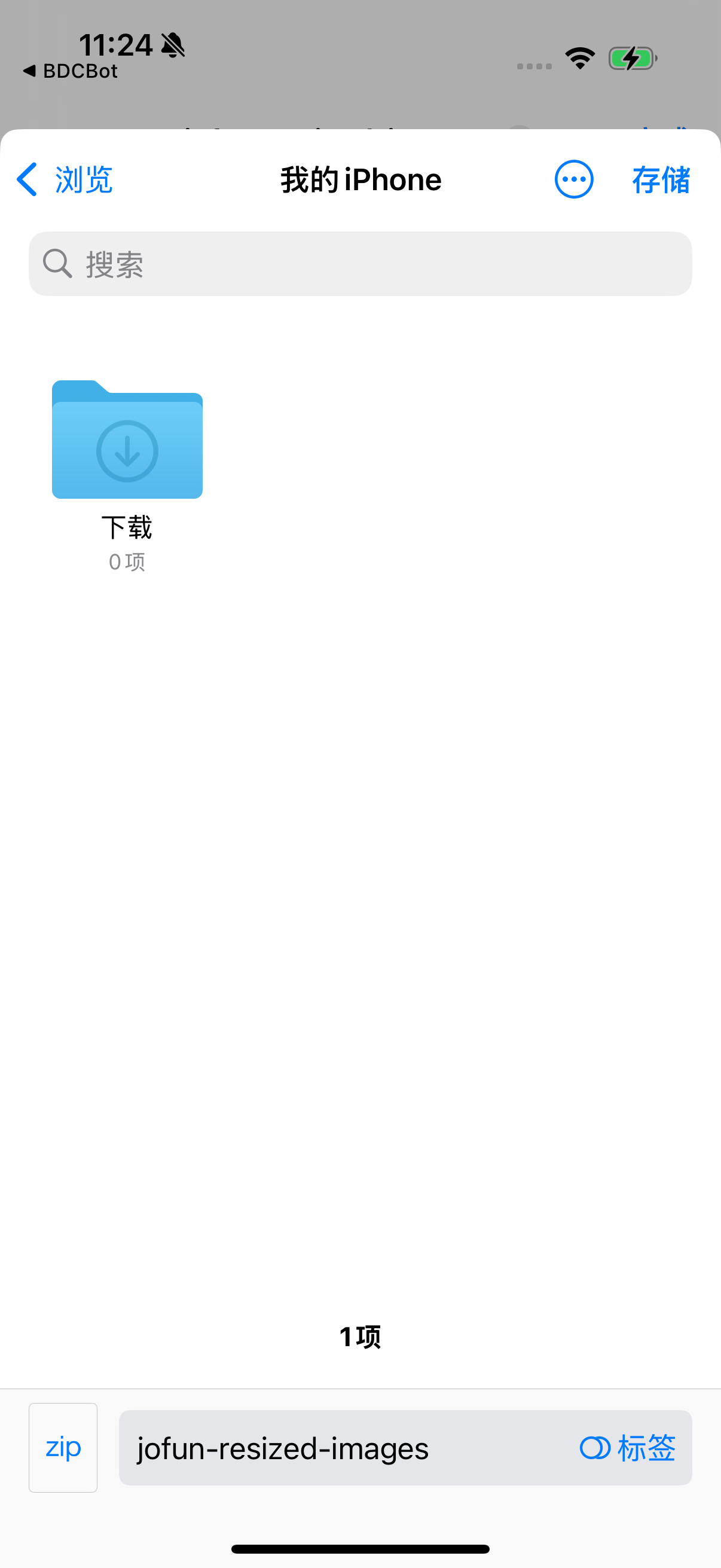
These screenshots use an iPhone 16 Pro, iOS 18.5 Safari, with the system language set to Chinese. They show our own synthetic sample download, not a customer file. Browser settings can change the default download folder.
What we checked in the saved files
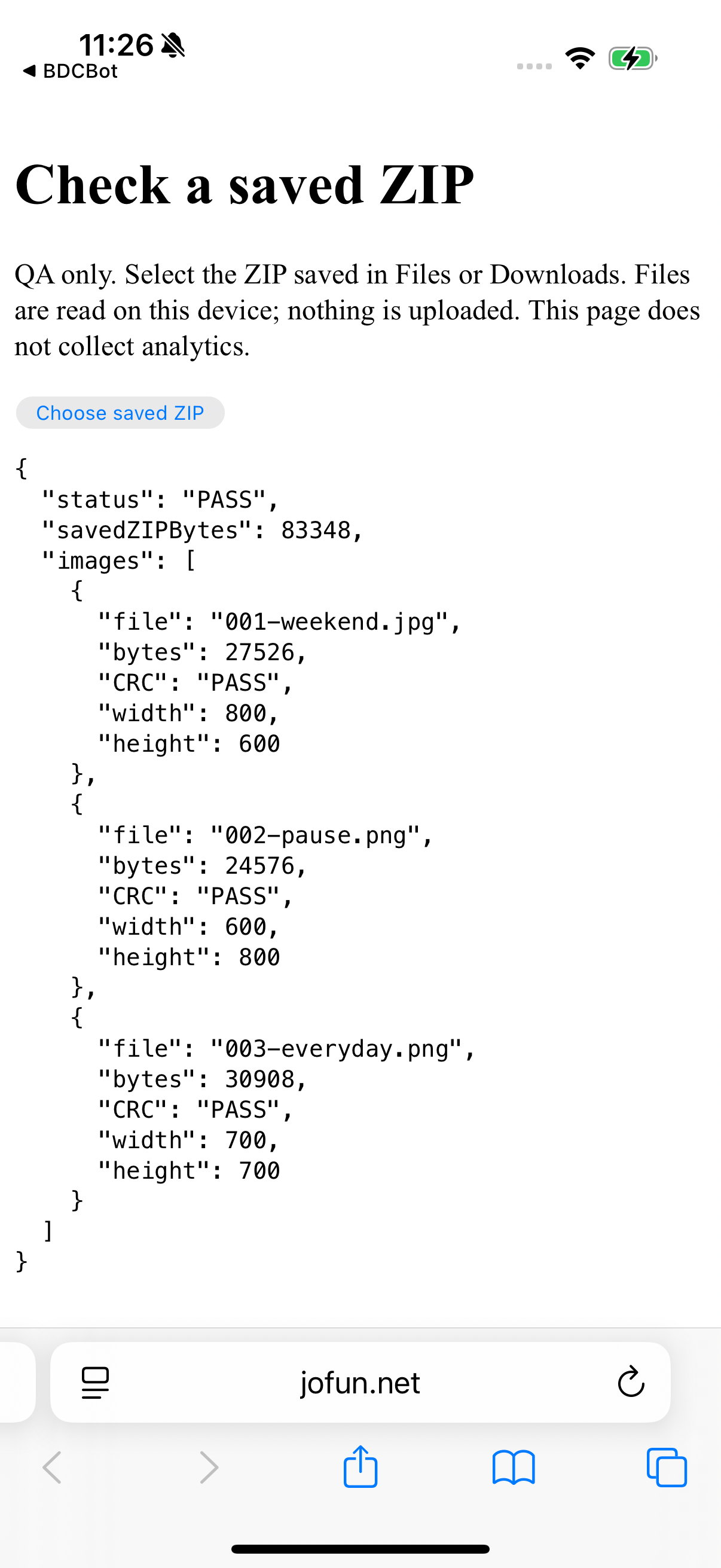
On 16 October 2026 we processed the built-in three-image sample batch at 50% with Keep original format in v1.4.0. We checked the saved ZIP’s CRC and decoded each image, not just the download notification. This is a reproducible size example, not a speed benchmark or a promise for every phone.
| Sample | Saved pixels | Android file | iPhone file |
|---|---|---|---|
| Weekend · 1600 × 1200 | 800 × 600 | JPEG · 16,148 bytes | JPEG · 27,526 bytes |
| Pause · 1200 × 1600 | 600 × 800 | PNG · 27,565 bytes | PNG · 24,576 bytes |
| Everyday · 1400 × 1400 | 700 × 700 | WebP · 6,484 bytes | PNG · 30,908 bytes |
| Saved ZIP | 3 files · CRC passed | 50,537 bytes | 83,348 bytes |
Different browser encoders produce different bytes. Safari generated the third sample as PNG when the sample’s WebP request fell back; it was correctly kept as PNG. This check does not establish Safari WebP export support. The actual format is shown beside each result; an unsupported requested export produces an error.
Download the checked Android ZIP · Android file measurements · iPhone file measurements
View the iPhone saved-file check
If something goes wrong
| What you see | What to do |
|---|---|
| No file in Photos | Check Downloads or Files first. Save individual images to Photos from their preview if your system offers that action. |
| Image cannot fit the KB limit | Keep exact dimensions and increase the limit/change format, or explicitly allow smaller dimensions. Review the actual saved size. |
| Old results after changing settings | Tap Update images. Previous results cannot be saved with settings they do not match. |
| A large batch stops or the tab reloads | Use fewer/smaller images and close unused tabs. Refreshing or closing clears this browser batch. Keep your originals. |